🚀 Exercises Level 3 One Key Piano

In this exercise we will make a piano that everyone can play, it only has one key. Everybody is a pianist!
You will need the Synth unit and any Atom device.
The Midi unit can be used instead of the synth unit but it requires an audio output via 3,5mm jack.
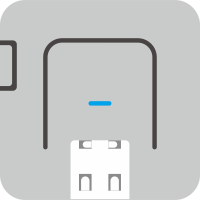 +
+
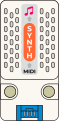
Connect the unit, open UIFlow2 and continue with the exercise below.
🚀 Exercises Level 3 One Key Piano Setup UIFlow2
Use the UIFlow2 IDE to setup the apropriate device and add the Synth unit.
The M5Stack Synth Unit is a small, modular audio unit designed for MIDI sound systems.
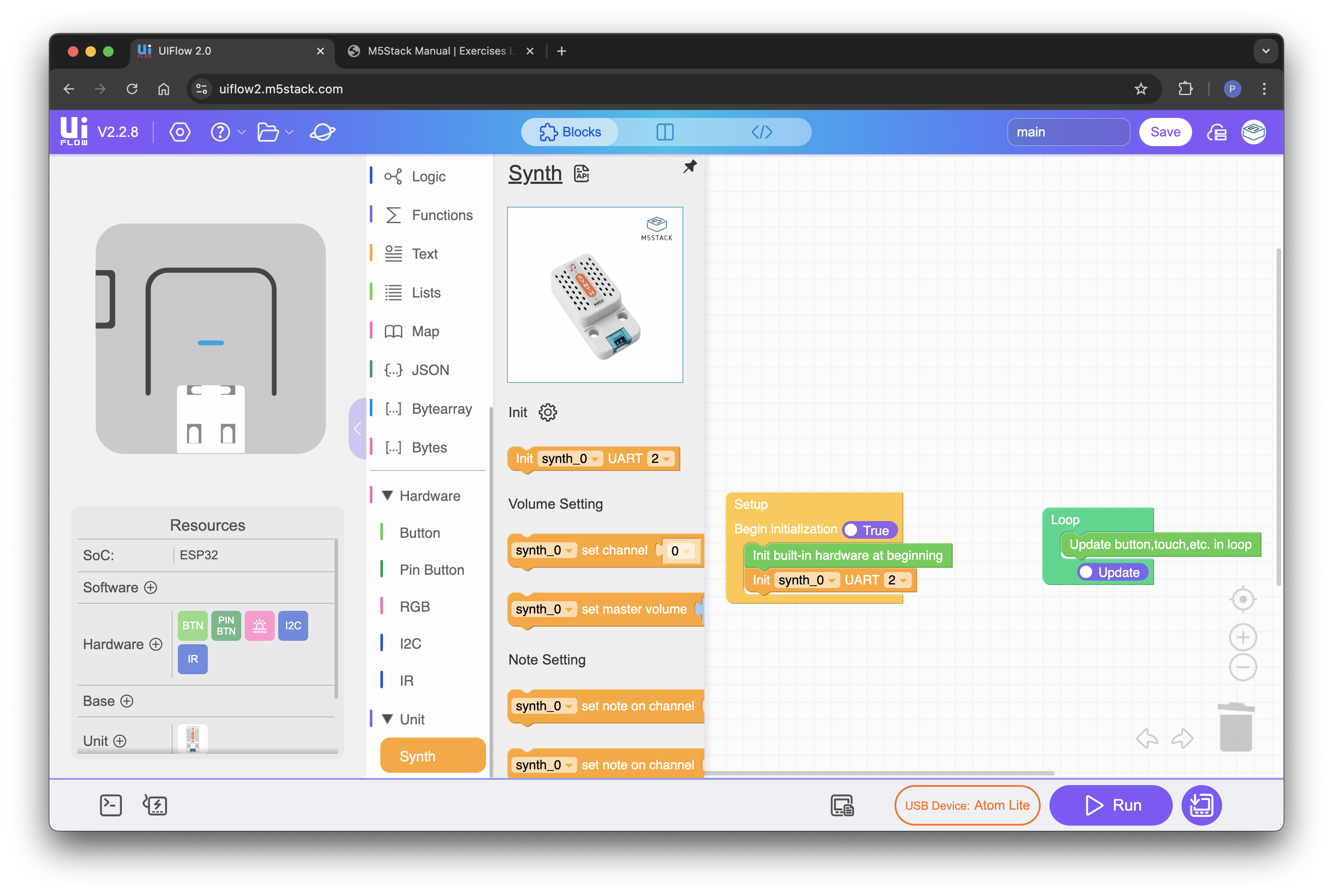
Create three variables called 'song', 'tick' and 'velocity'.
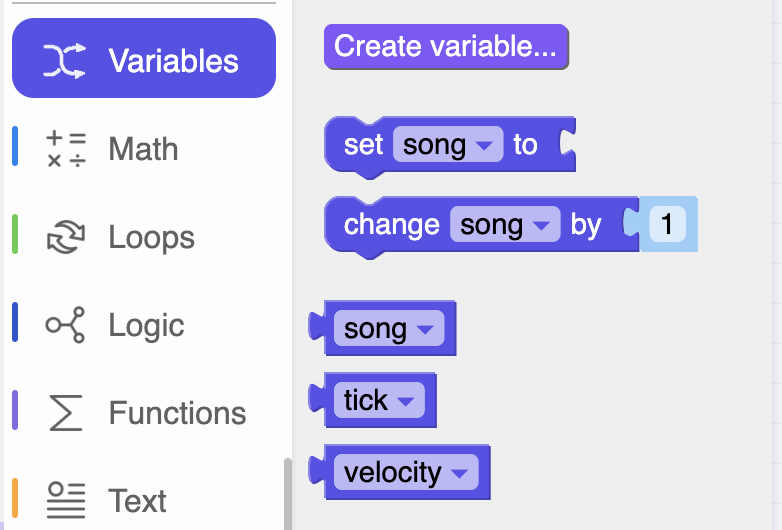
In the setup block we will configure the volume of the Synth unit.
We will set the instrument of channel 0 to our prefered instrument (a piano works best for this exercise)
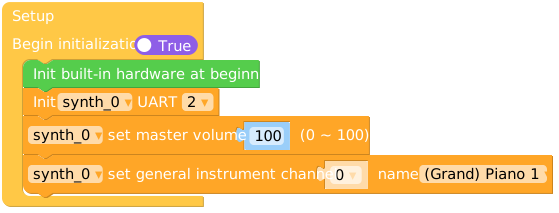
We will set the velocity variable to a value between 0-127. In MIDI terms velocity refers to the intensity a note is played
The song variable will contain a list (see the list category) of notes (integers) that will be played when our one key piano key is hit.
Apply the notes list exactly as the picture: 84, 79, 76, 81, 83, 82, 81, 79, 88, 91, 93, 89, 91, 88, 84, 86, 83.
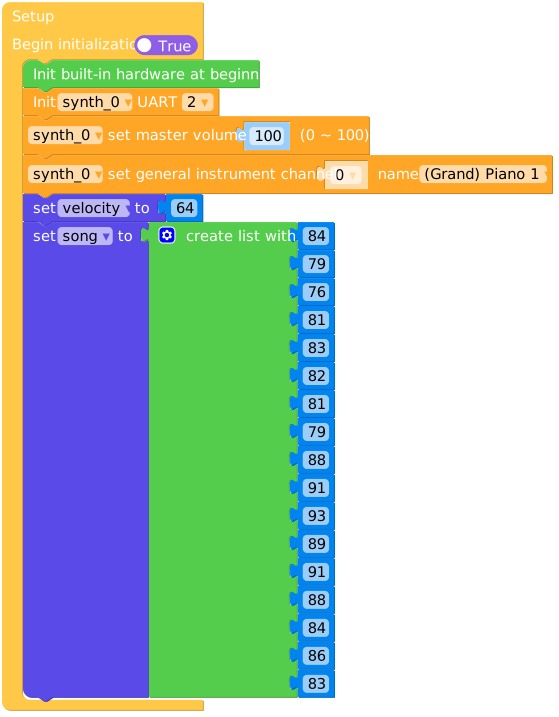
For our piano to play any notes, we need to setup a button event (hardware category -- When BtnA was clicked).
Run the program and play one note by pressing button A to see if the Synth unit is working

If your note is played when pressing the button we can setup the button A event to cycle through the notes in the 'notes' list.
This is where the 'tick' variable comes in, with every button click we need to increase tick by one and play the corresponding note in the list.

First find the 'in list [notes] get #' code block in the List category code blocks.

Drag the block into the pitch value of the set note block, change the list variable to note and change the # to tick.

Run the code to see if the notes are played in the right order. Do you hear what song it is?
🎆
We are not done yet. If the tick variable reaches the end of the list an index error will occur.
This makes sense, we ask the controller to play a note that does not exist (tick > total count of notes).
We need an if statement to reset 'tick' to 0 if tick reaches the end of the 'notes' list.
You can find the 'if' and 'greater than or equal' block in the 'Logic' category. Drag both onto the canvas.
To reset the 'tick' variable to 0 if it reaches the end of the list propagate the if statement as follows:
(The 'length of' block can be found in the List category)
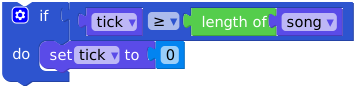
Drag this block at the end of the Button A event and run the code, try to play the song more than once to see if it works.
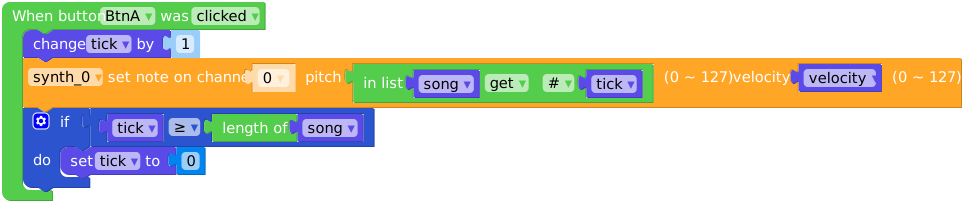
Everybody is a pianist!
🎆